
How to Install and Activate Microsoft Office 2024
Written by Marteen Roose
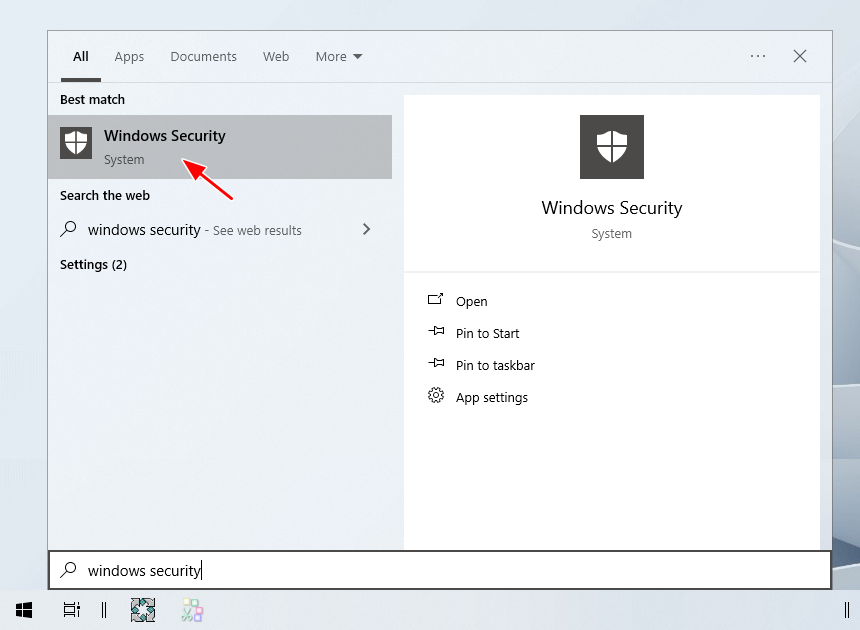
1. Disable your antivirus via Windows Security, which you can open from the Start menu.
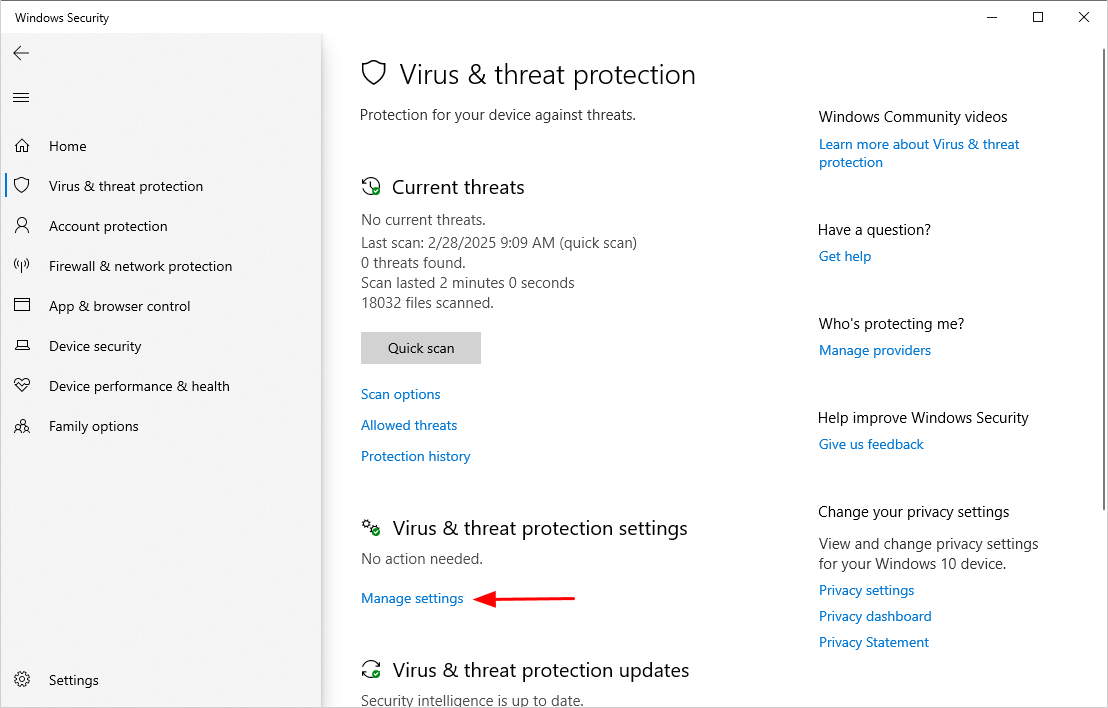
2. Find and click Manage settings.
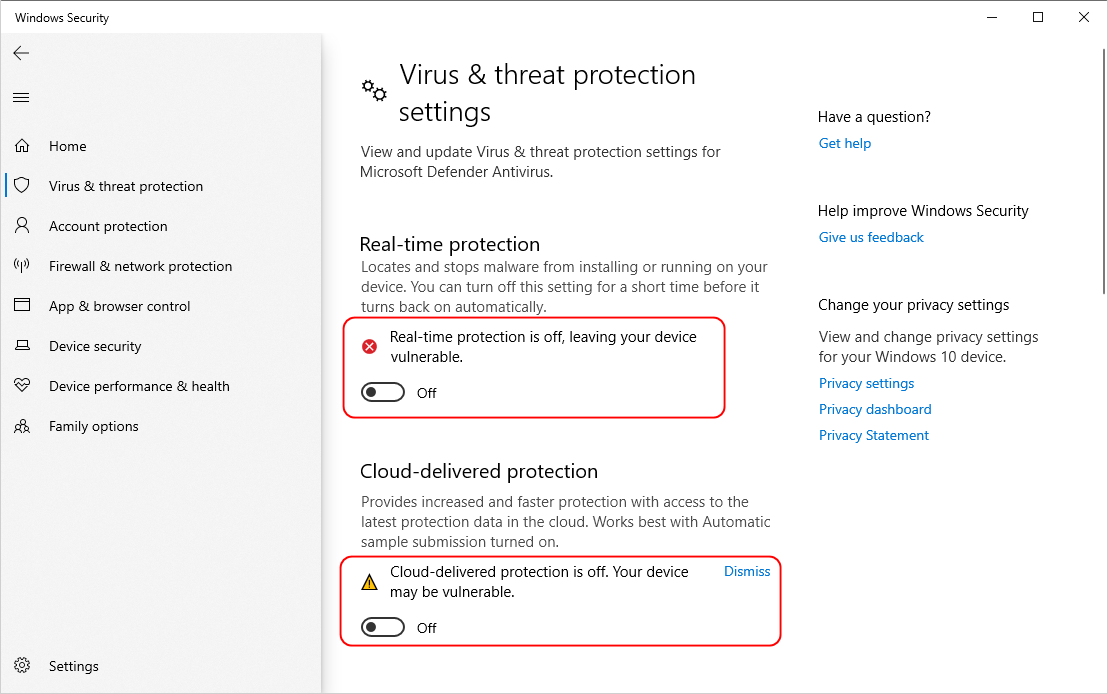
3. Disable all the security features shown in the window.
4. Disable your internet connection.

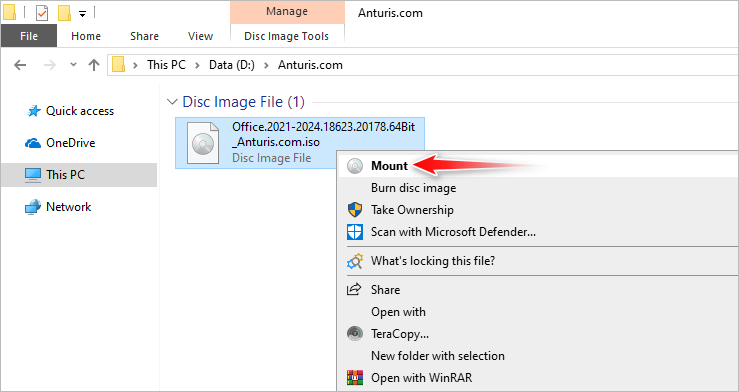
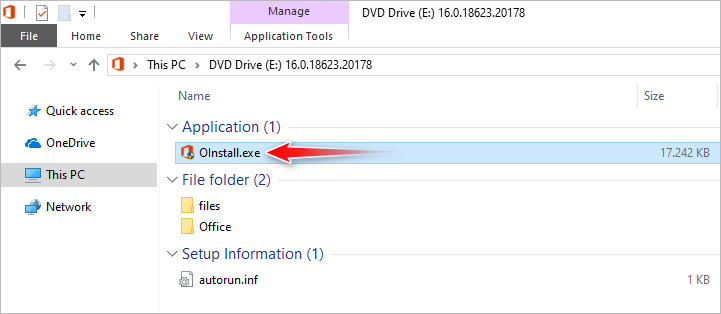
5. Right-click on the ISO file and select Mount.
6. Once the mounted drive opens, double-click on OInstall.exe.
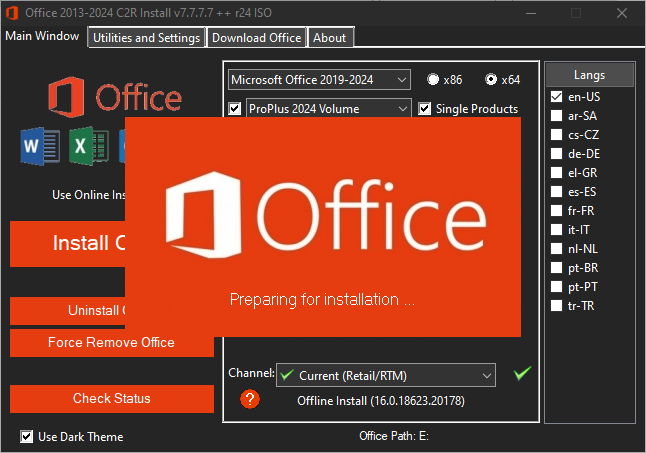
7. The window that says Preparing for installation may take a while to disappear, so please be patient.
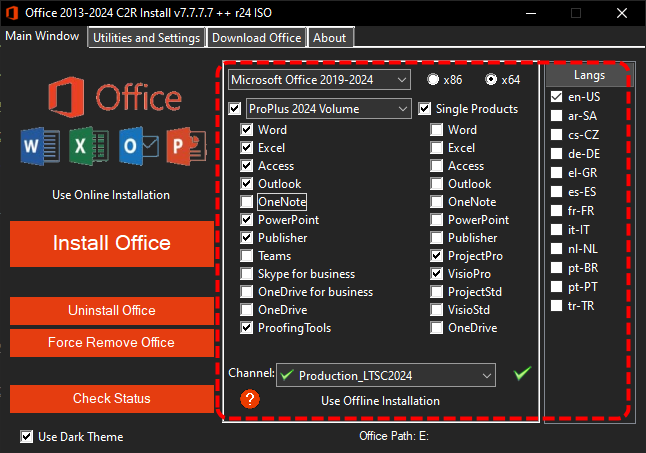
8. Once the main window opens, select the products you want to install.
9. Click Install Office.
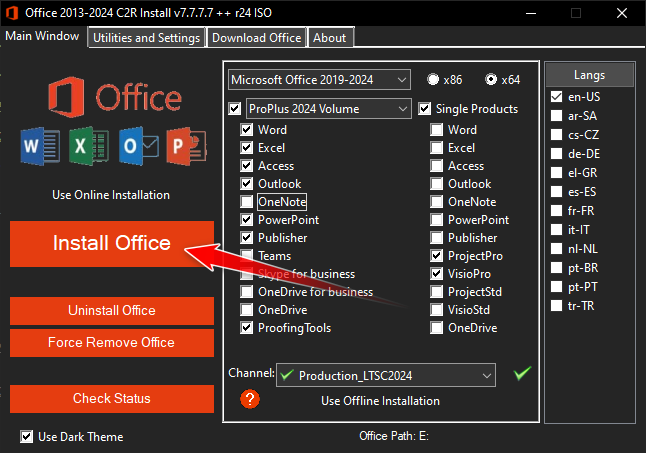
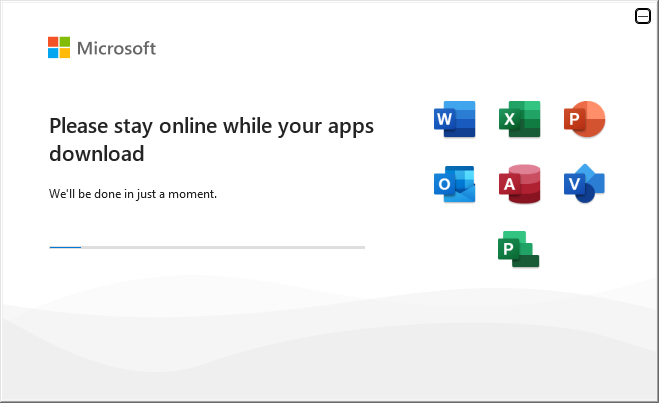
10. At this stage, the installation is in progress. You can ignore the message shown in the window. Even though it says to stay online, the installation is running without downloading anything. You just need to wait until the installation is complete.
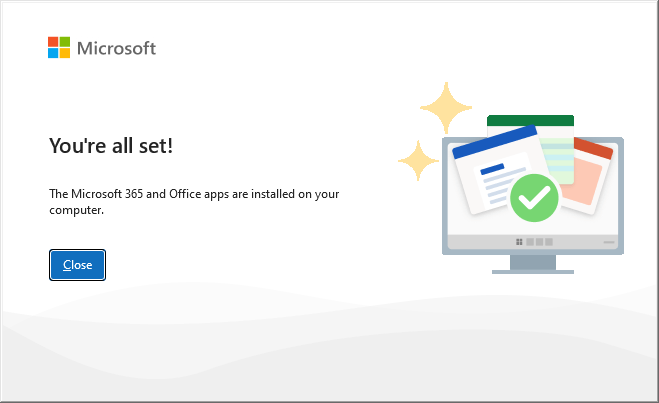
11. Click the Close button.
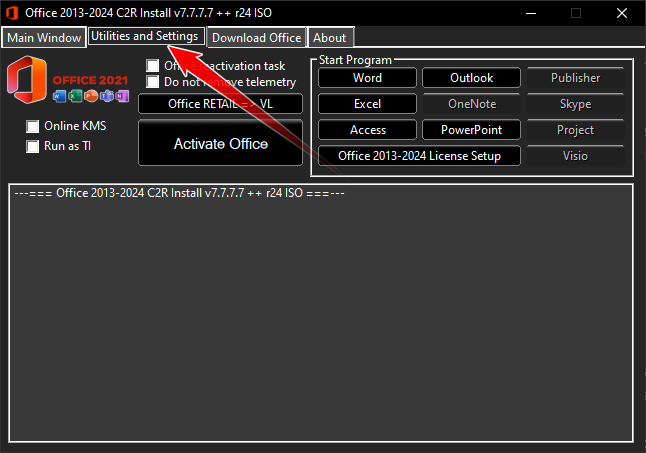
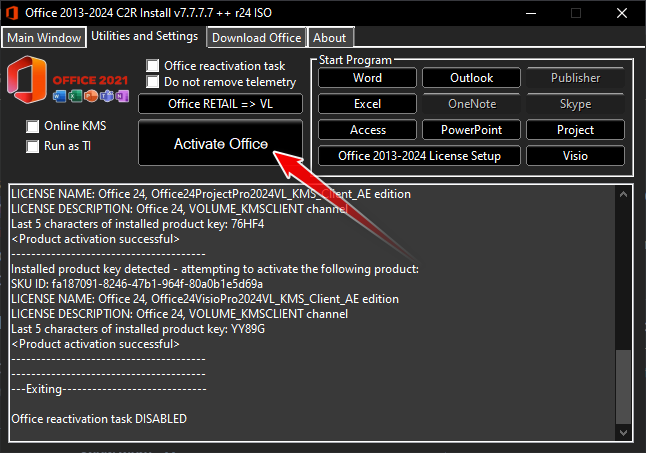
12. Return to the installer window and click the Utilities and Settings tab.
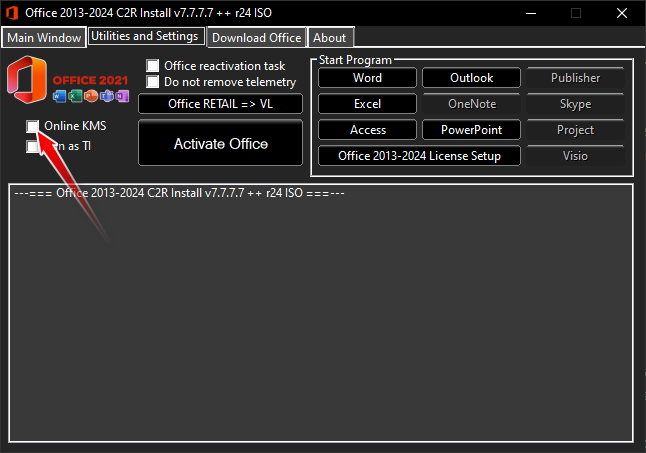
13. Make sure the Online KMS is unchecked.
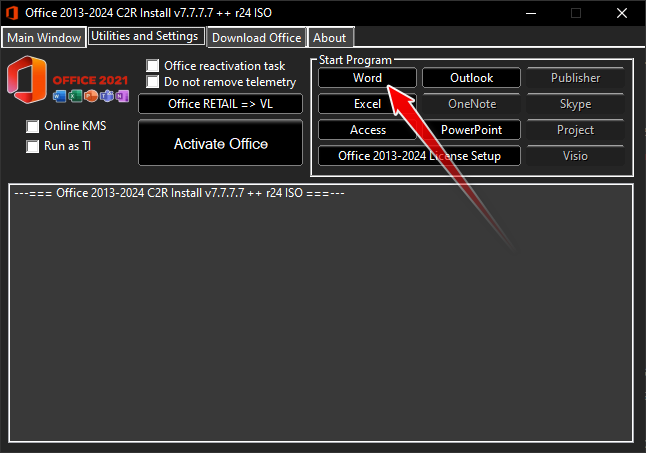
14. You’re required to launch at least one of the installed products to activate Microsoft Office. Click the Word button to launch Microsoft Word.
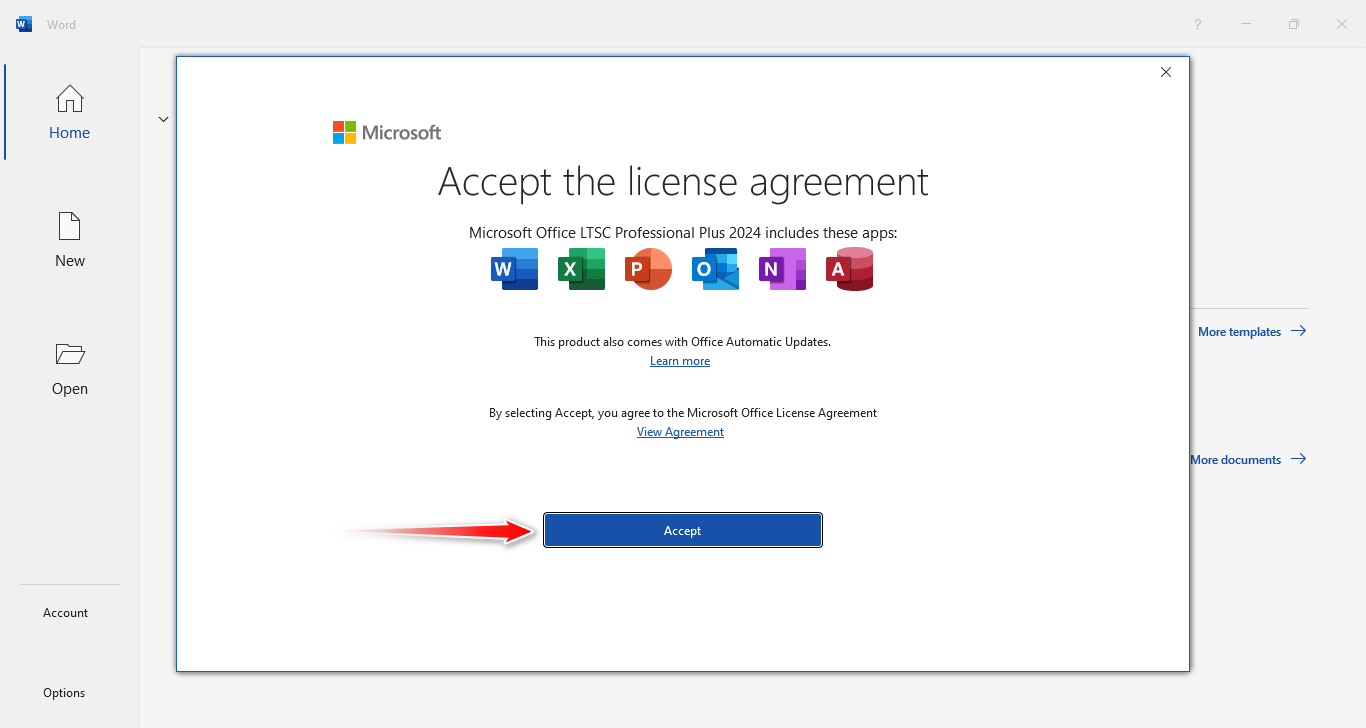
15. Click the Accept button.
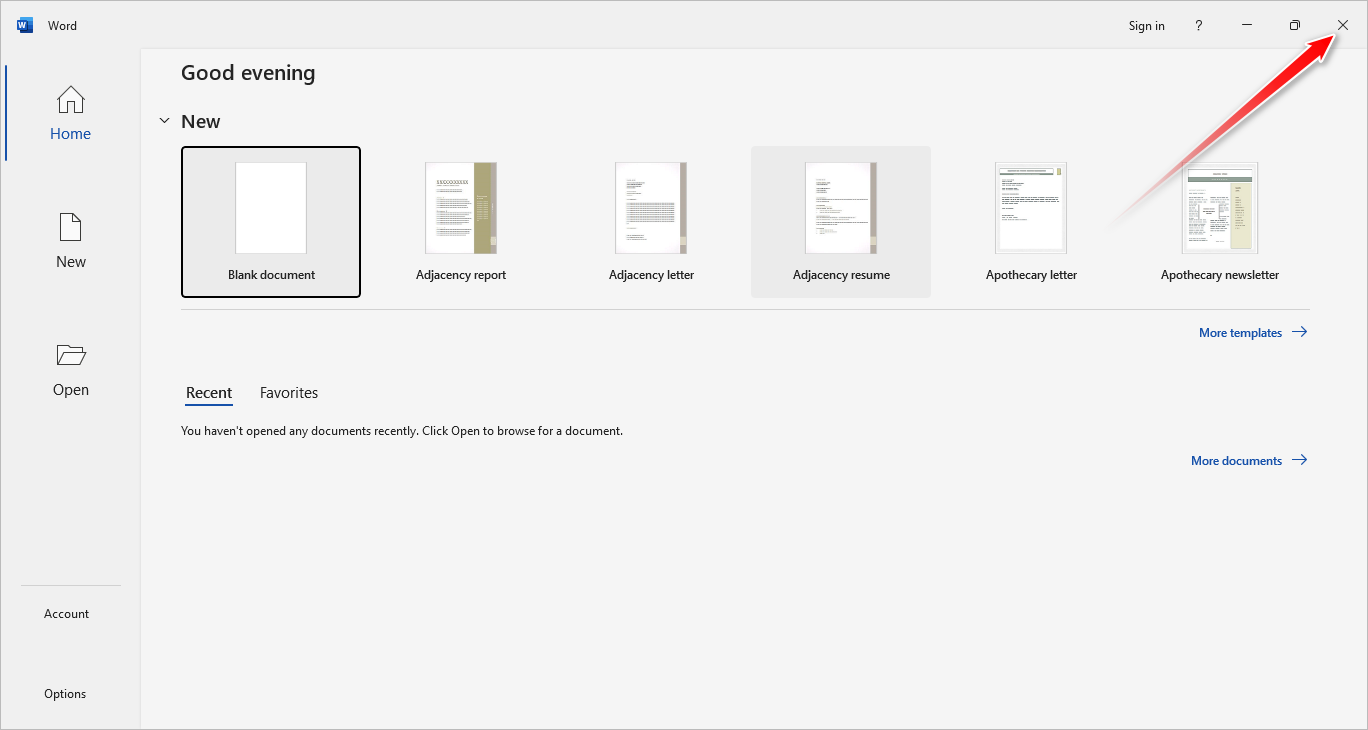
16. Click the Close button to exit Microsoft Word.
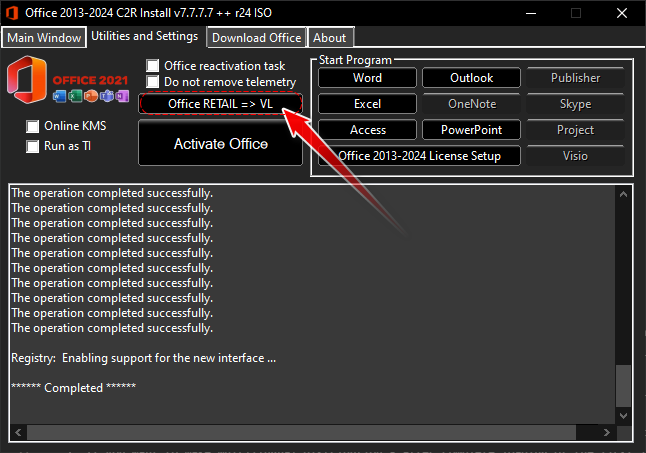
17. Return to the installer window and click the Office RETAIL => VL button to do the conversion and disable telemetry.
18. Click Activate Office to start the activation.
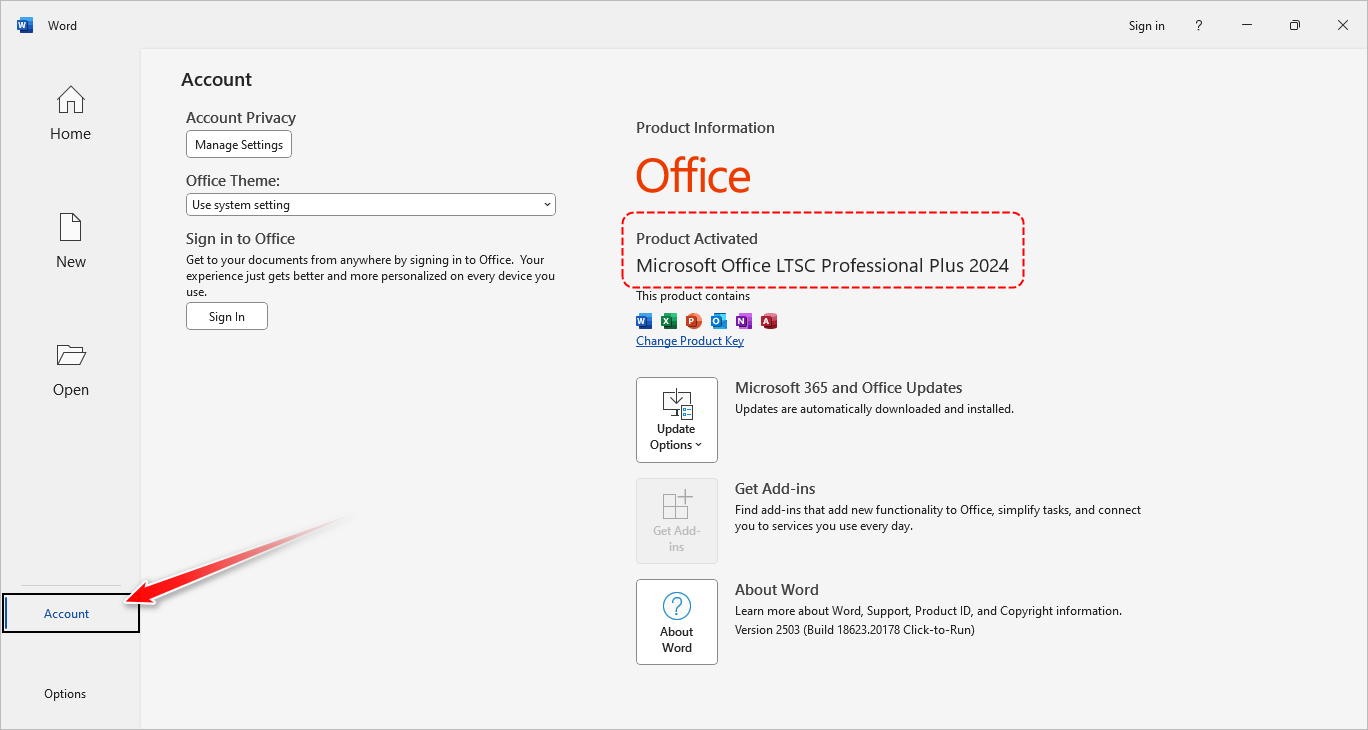
19. Once the activation is complete, launch Microsoft Word, and click the Account menu to check the activation status.

Leave a Comment