
How to Install and Activate Firefly AI Support for Photoshop
Written by Marteen Roose
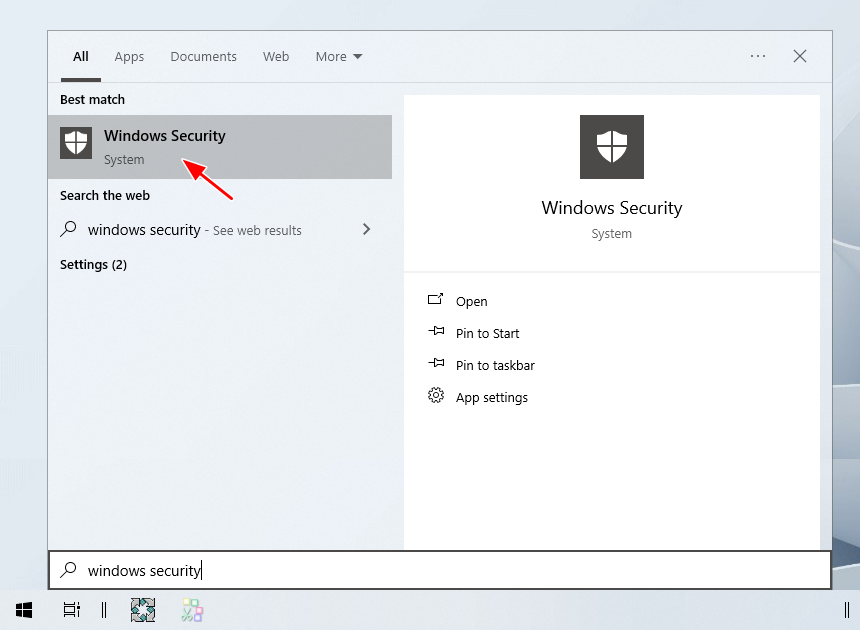
1. There’s no need to turn off your antivirus, but if you want to rule out any chance of a false positive, you can temporarily disable it. To get started, open Windows Security from the Start menu.
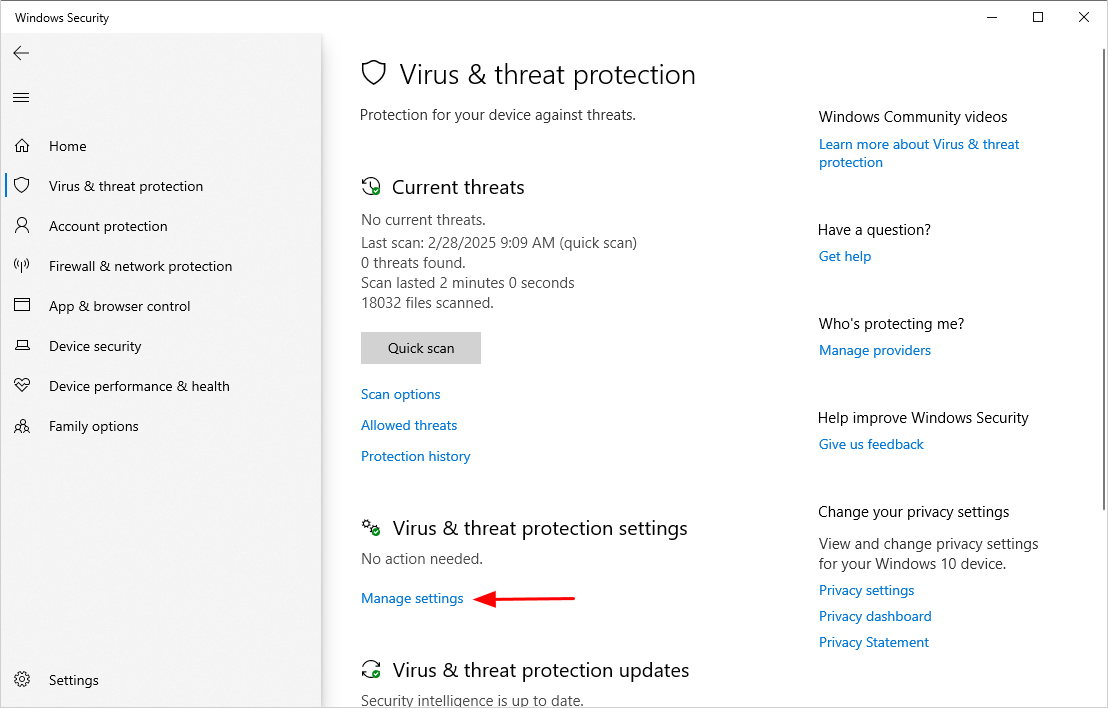
2. Click Manage settings.
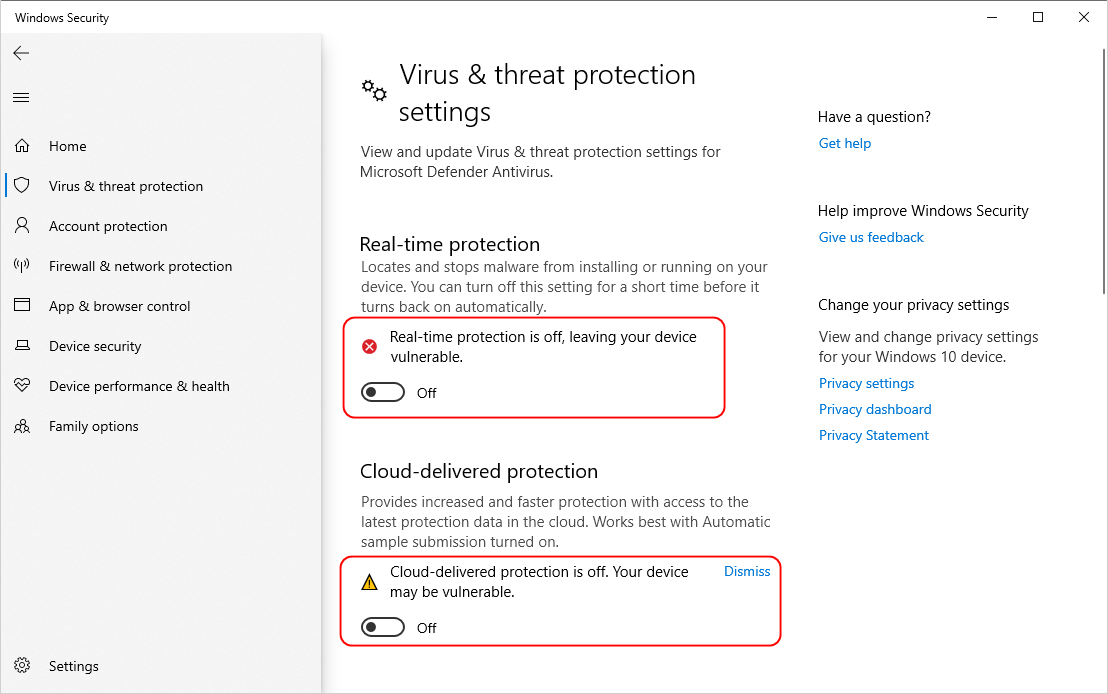
3. Disable all the security features you see in the window.
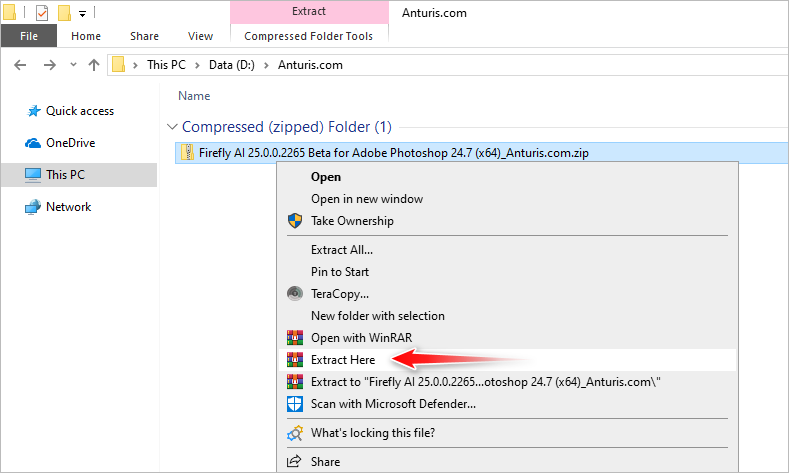
4. Extract the archive that you have downloaded from our site. If it asks for a password, type 123.
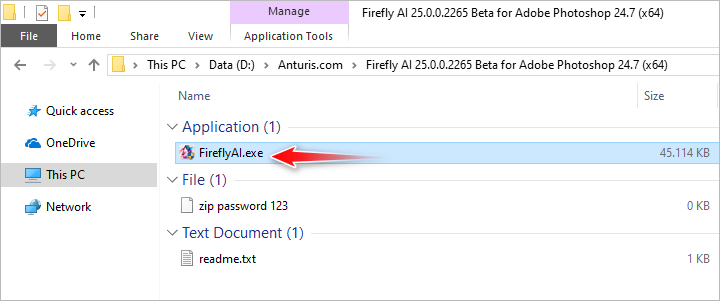
5. Open the extracted folder and double-click FireflyAI.exe to install it.
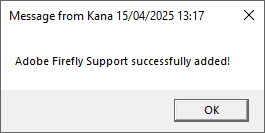
6. Click OK to close the window.
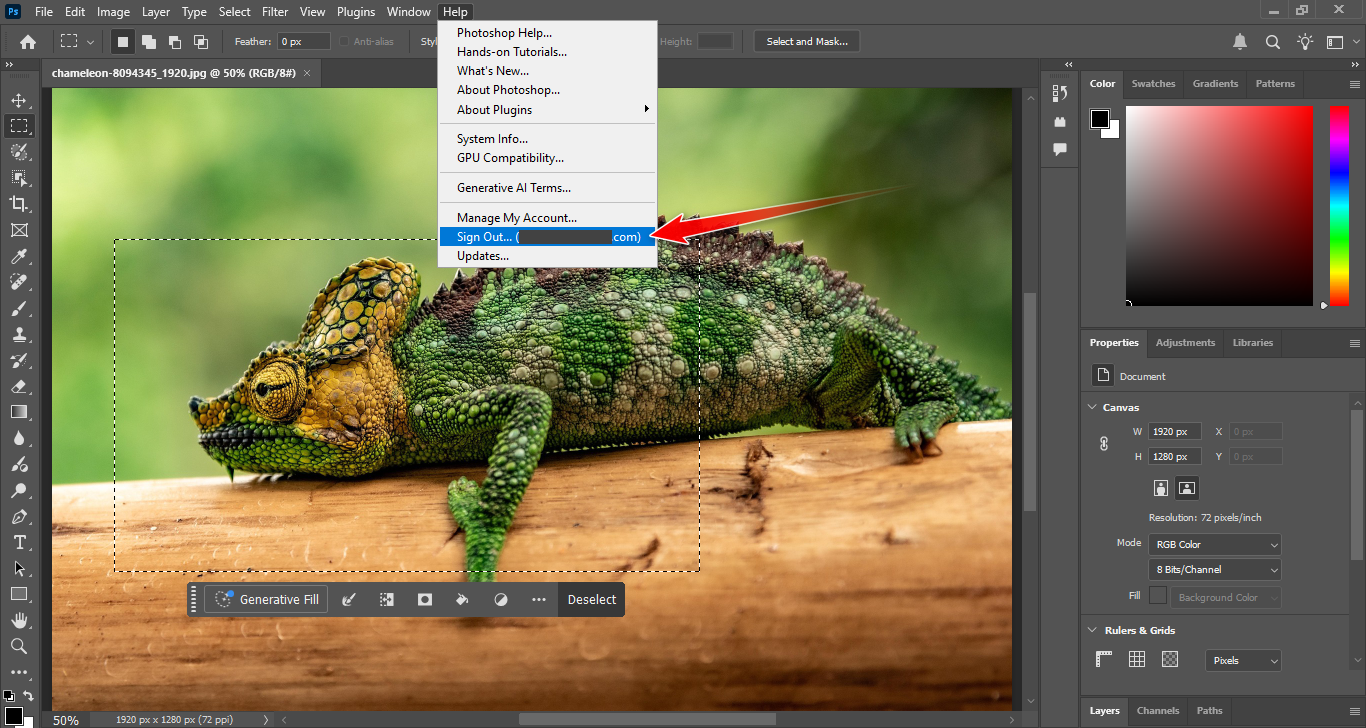
7. Launch Adobe Photoshop. If the Generative Fill is greyed out, make sure you sign in to your Adobe account via the Help menu. Once you sign in, the AI feature should be active immediately without having to restart Photoshop.

Leave a Comment